
This page provides an overview of the Domestic Flight Package booking process, from searching for available packages to completing your payment.
(※The Domestic Flight Package is a travel package that includes a domestic flight and hotel accommodation.)
Click the section you would like to view below.
もくじ
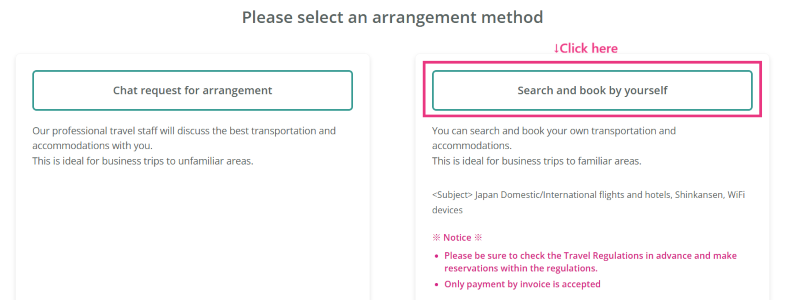
First, click New Request, then select [Search and book by yourself].
Next, enter your business trip details on the Business Trip Request screen.
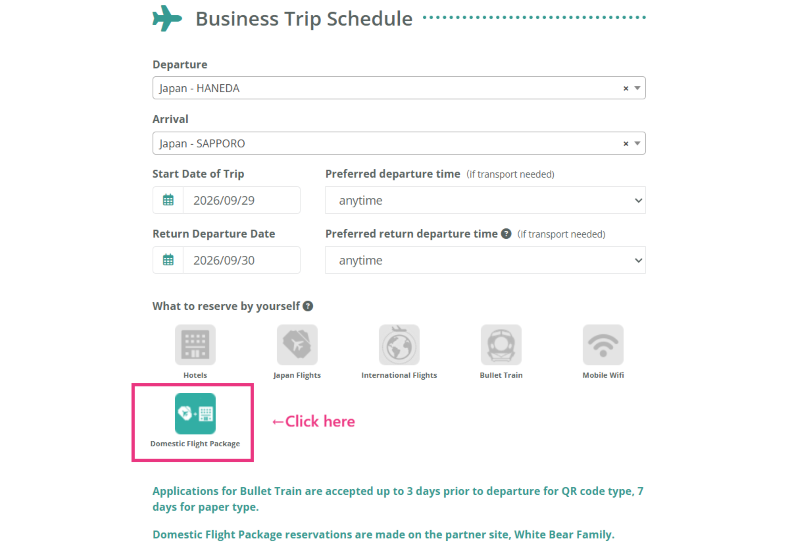
After clicking Request Business Trip Arrangement, a chat page will be created.
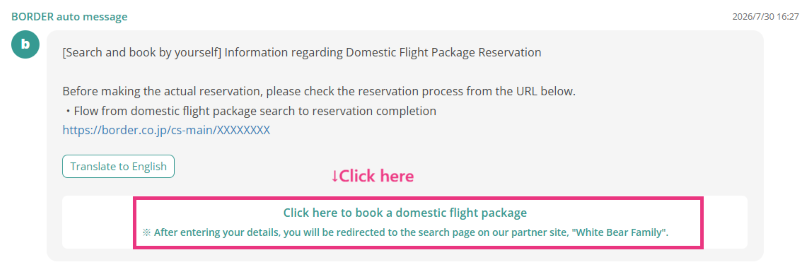
Once you have reviewed the automated message, click Book a Domestic Flight Package Here to proceed to the search page.
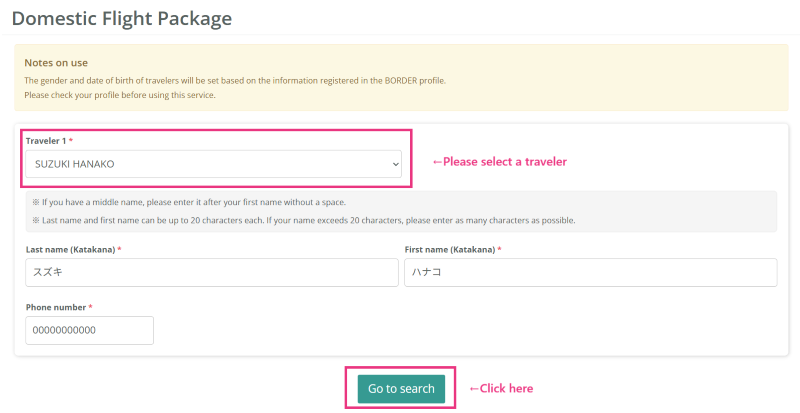
Select the traveler.
※Notice※
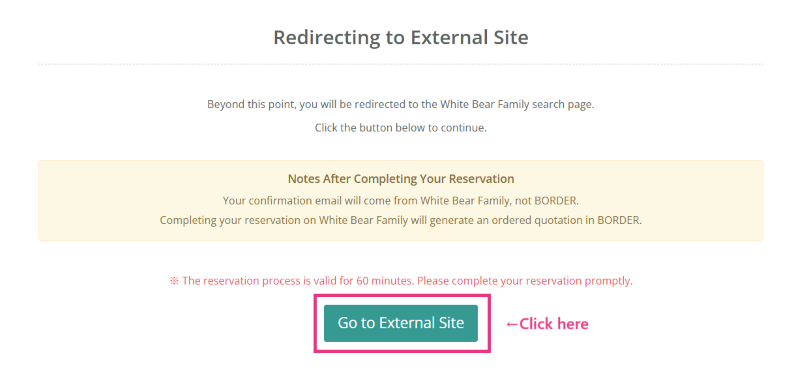
・The booking confirmation email will not be sent by BORDER. It will be sent by White Bear Family to the email address you provided when making your reservation.
・Once your reservation is confirmed by White Bear Family, an ordered quotation will be automatically created in BORDER.
・The external website is available in Japanese only. If needed, please use your browser’s translation feature.
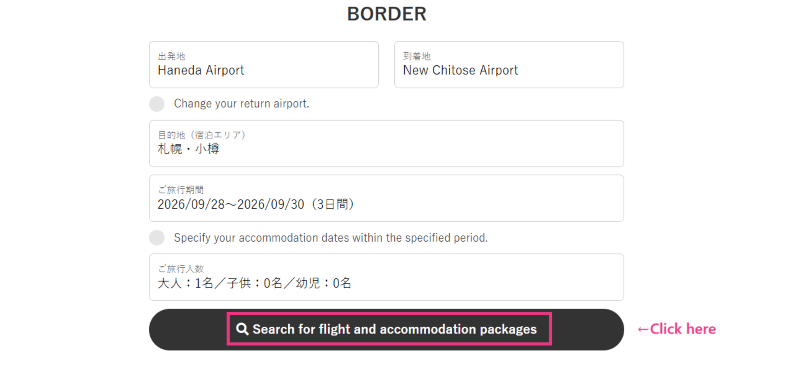
Enter the departure location, arrival location, destination (accommodation area), travel dates, and number of travelers, then click Search Flight + Hotel Packages.
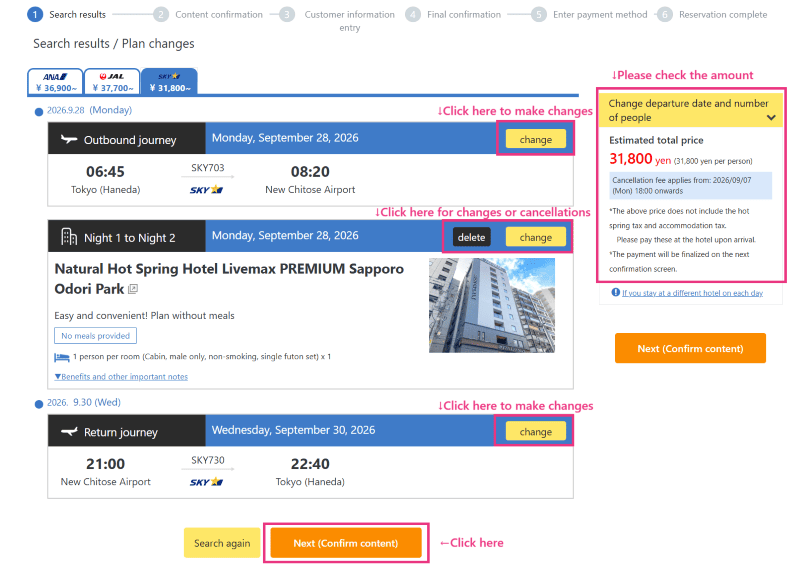
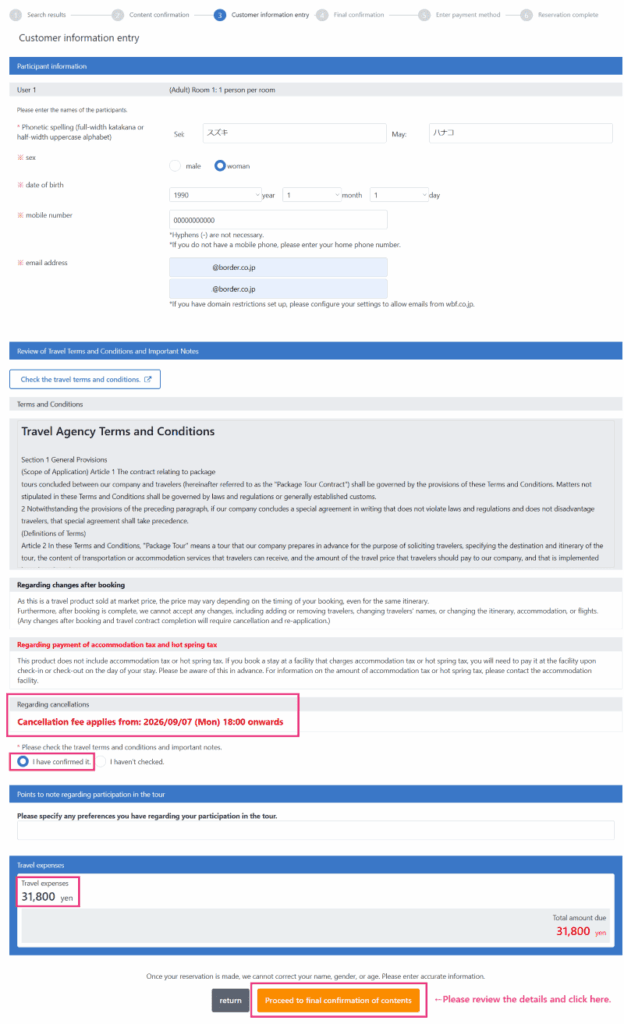
Select your preferred flight and hotel, review the total price and the cancellation policy date, then click Next to proceed.
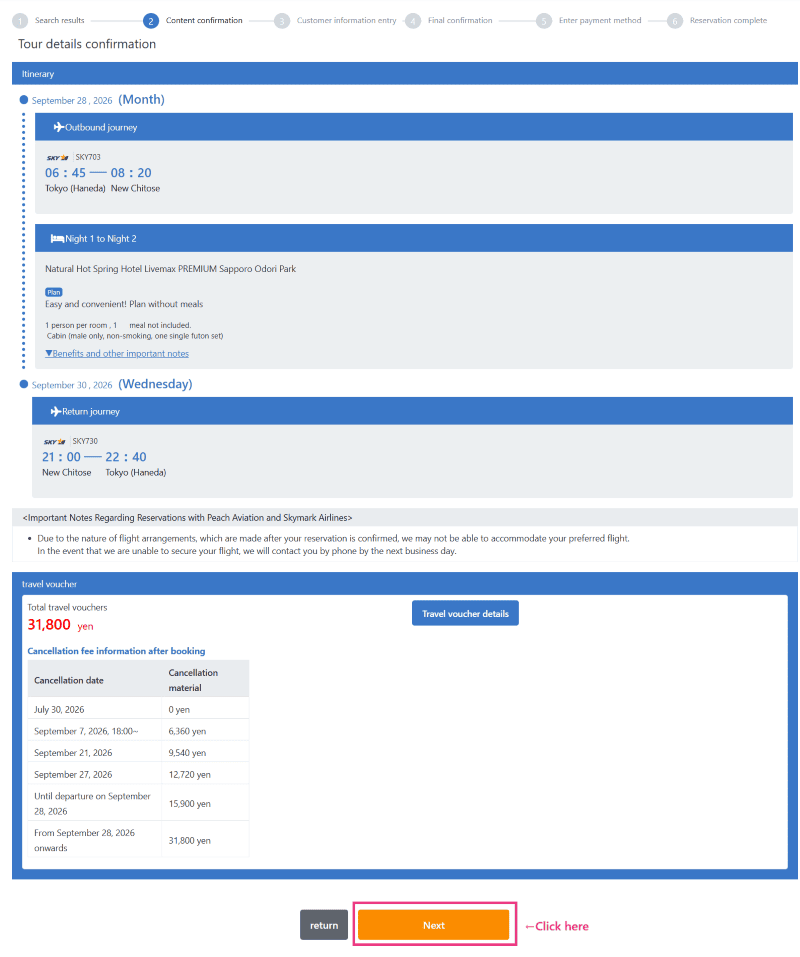
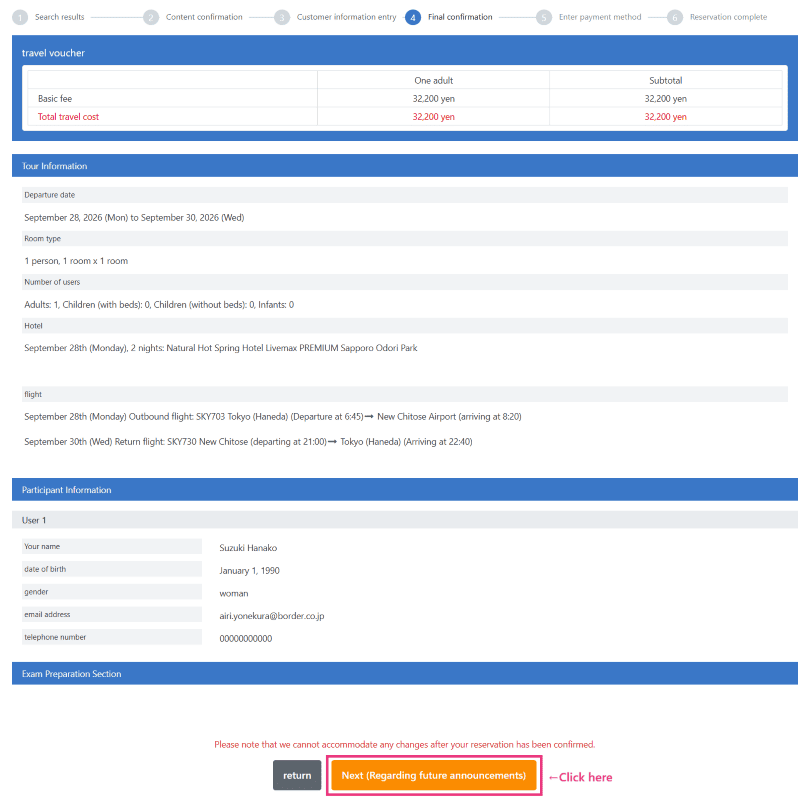
Review your reservation details, then click Next to proceed.
You will be redirected to the Customer Information entry screen.
The customer information registered in your BORDER profile will be automatically populated by default.
Please review the information and make sure there are no errors.
Review the details one final time before completing your reservation.
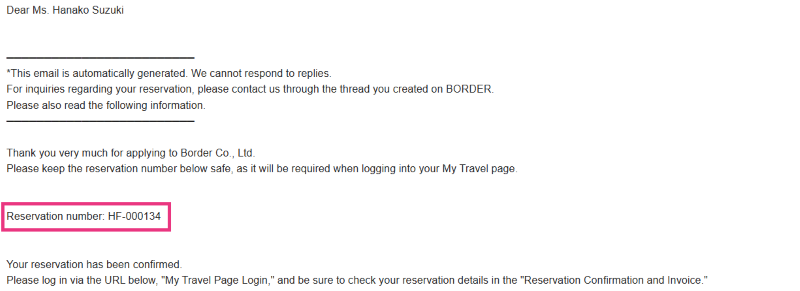
Your reservation has been confirmed.
Once your reservation request has been submitted, a confirmation email will be sent to the email address you provided.
※Please use your browser’s translation feature if needed.
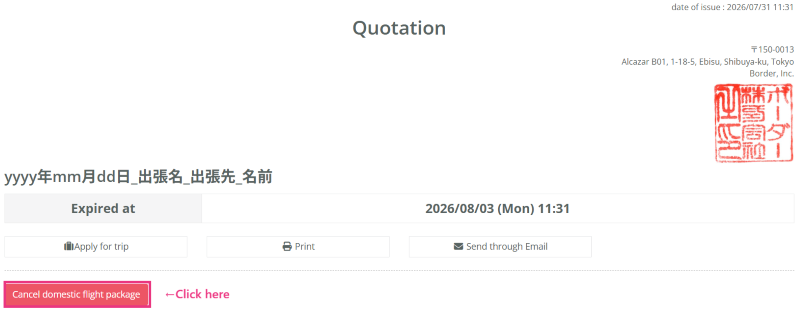
An ordered quotation will also be issued in the BORDER thread.
If a business trip approval is required, please submit your request in accordance with your company’s internal procedures.
For instructions on submitting a business trip request, please refer to the guide below.
Once the quotation has been linked to the business trip request, an approval request email will be sent to the approver.
Please refer to the guide below to complete the approval process.
For advance seat selection on ANA, JAL (including partner flights), and Skymark,
please refer to the page below and select your seats yourself via the “My Trip” page.
For other airlines (Peach, Jetstar), if seats are available in the advance allocation,
White Bear Family will handle the seat selection after your reservation is confirmed.
▼Information Regarding Seat Selection
https://www.wbf.co.jp/information/seat/
Please note that the number of seats available for advance selection is limited for each airline, and it may not always be possible to select a seat in advance.
Five to seven days before your departure, the “Final Travel Information” will appear on your “My Trip Page.”
Please log in to your “My Trip Page” and make a note of the “flight confirmation number” (ticket number) listed in your itinerary details.
Then, please obtain your e-ticket from the airline’s website.
After arriving at the hotel, please complete the check-in procedure at the front desk.
Please check in using the name of the first guest listed on the reservation.
Since this tour is a dynamic pricing plan, changes to the tour details after booking cannot be accepted, including the departure date, flight time, number of travelers, or customer information such as names, gender, and dates of birth.
Changes to the accommodation plan also cannot be accepted.
If you wish to modify your reservation details, please cancel your existing reservation and make a new reservation yourself.
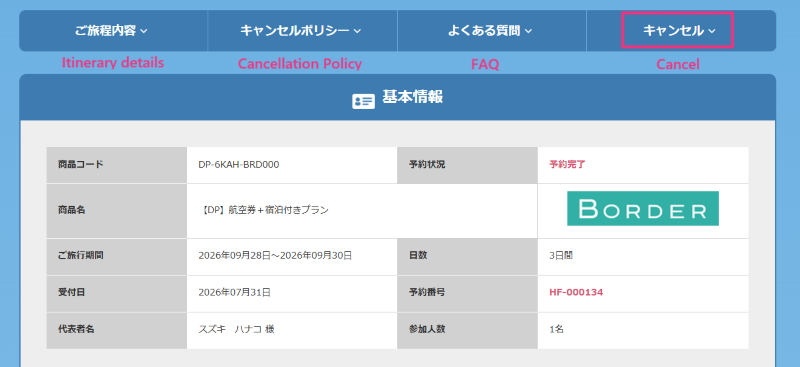
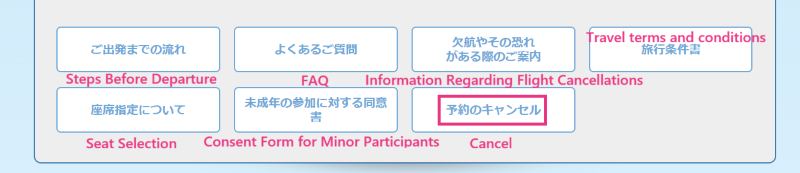
Please access the White Bear Family website from your quotation in BORDER and complete the cancellation procedure yourself.
※Please use your browser’s translation feature if needed.
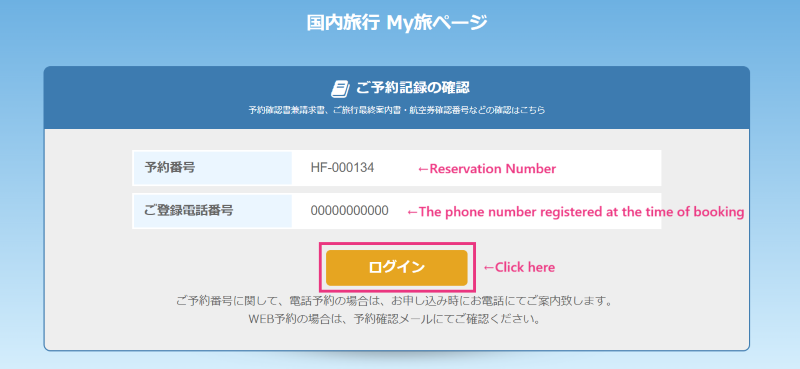
Enter the Reservation Number provided in your reservation request confirmation email and the phone number you registered when making the reservation, then click Log In.
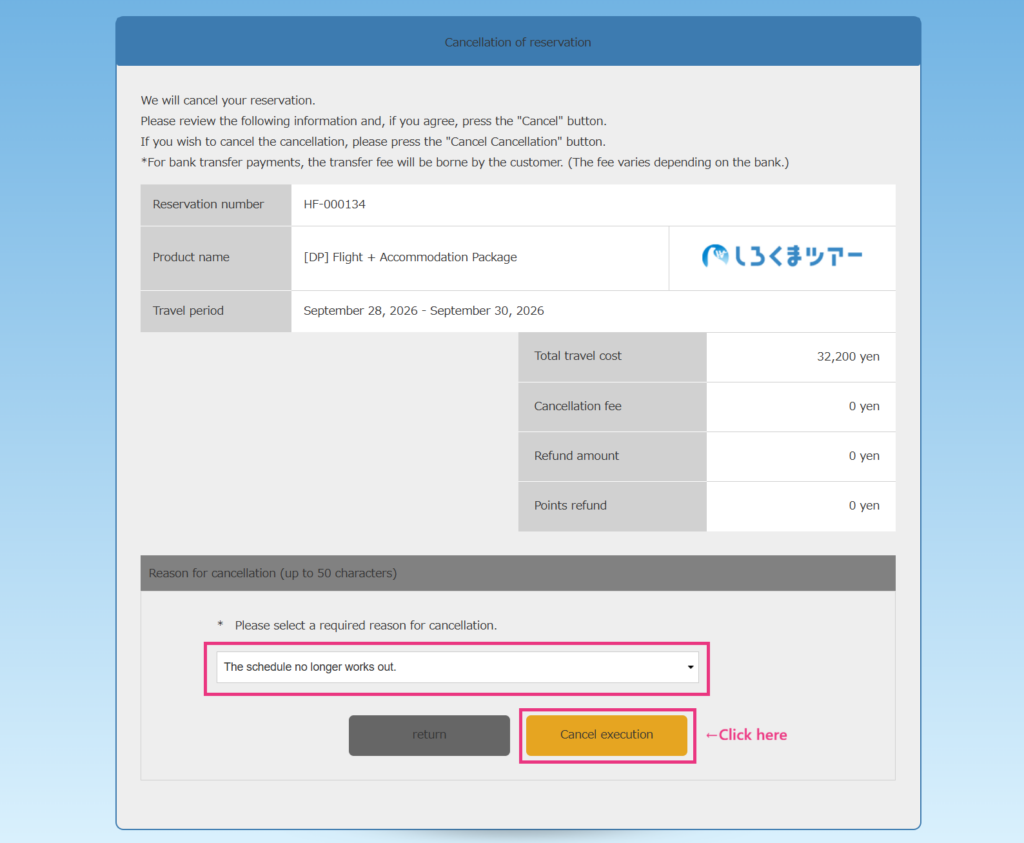
Once the cancellation has been completed, the following screen will be displayed.
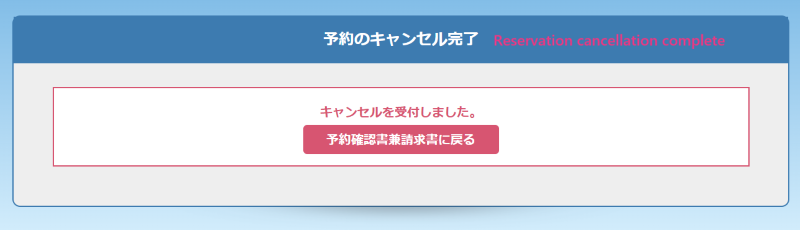
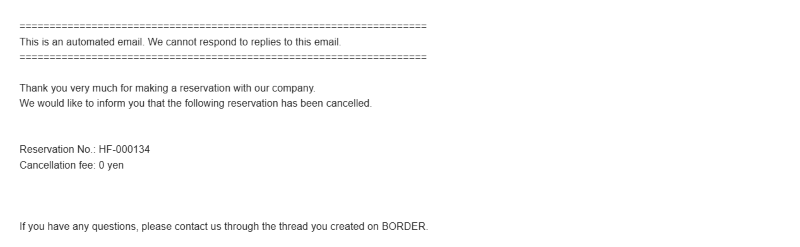
You will also receive a Cancellation Confirmation Email.
In addition, a cancellation quotation will be issued on the BORDER chat page.
Please check with your airline for flight status information. The following pages are available only in Japanese.
Information Regarding Flight Cancellations or Potential Cancellations

ボーダー株式会社
出張管理ツール「BORDER」を運営するボーダー株式会社のコラムチームです。BORDERコラムでは、実務の一次情報に基づく独自性の高いコンテンツと読者が具体的なアクションに繋げられる実用的な情報を発信しています。累計導入者数に基づく手配・管理ノウハウを通じ、出張業務のガバナンス強化と効率化を支援します。
